1. Open Facet
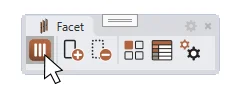
Click the Facet icon, the first button on the Facet toolbar, or type Facet in the Rhino command line. The Facet controller opens.
2. Choose a framework
Click Select Framework to open the Facet Gallery. Choose a framework to see its detail page, then click Open Framework.
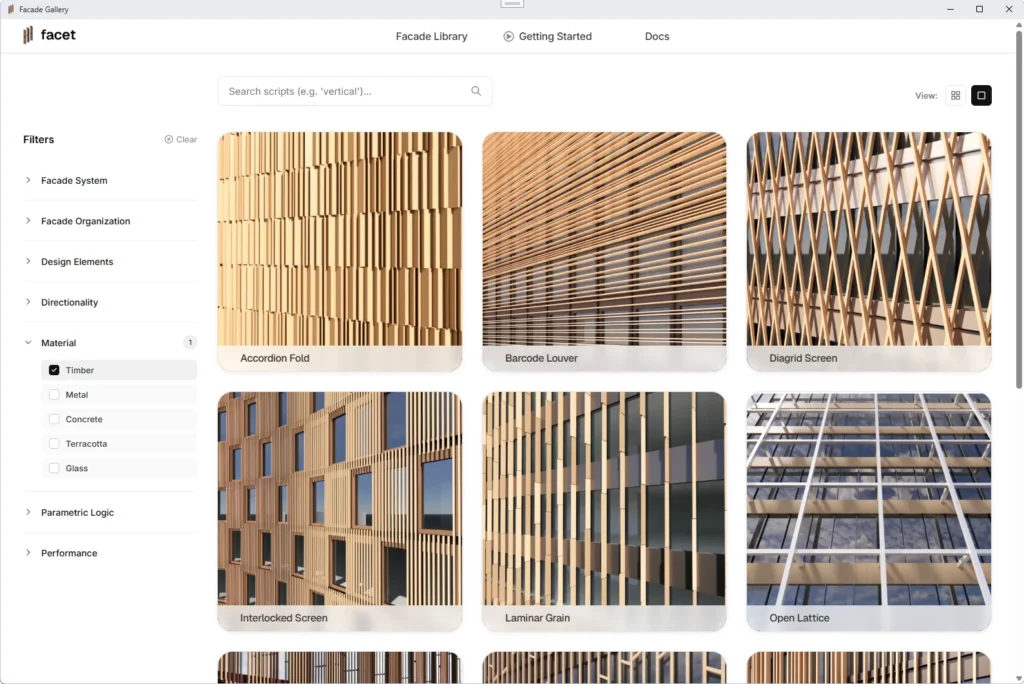
Facet loads the framework in the background, and the controller shows …loading until it’s ready. The first time can take a few seconds.
3. Select your surfaces
The controller asks for the surfaces to build the facade on. Click Select Surface(s), pick one or more surfaces in the viewport, and press Enter.
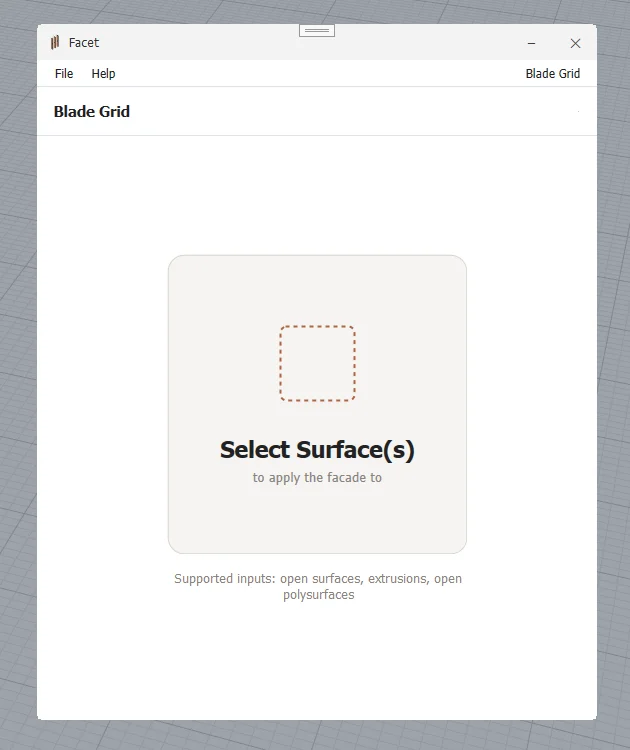
The facade appears on your surfaces. Your surfaces are now linked: change a surface’s shape in Rhino and the facade follows.
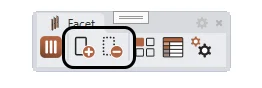
You can change which surfaces are used at any time with Add Surface and Remove Surface on the Facet toolbar.
Facade on the wrong side? A facade faces the same way as its surface. To check, select the surfaces and type Dir: arrows show each surface’s direction. Click a surface to flip it, then press Enter.
4. Design your facade
The controller shows the facade’s elements as tabs, such as panels, fins or frames. Each tab holds the parameters for that element. Hold down a tab’s title to highlight that element in the viewport.
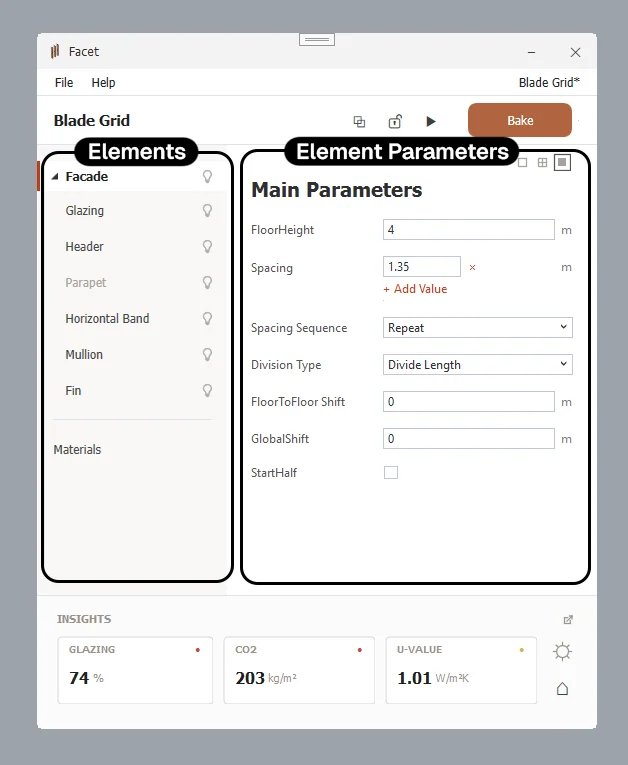
Change any parameter and the facade updates straight away.
5. Read the live metrics
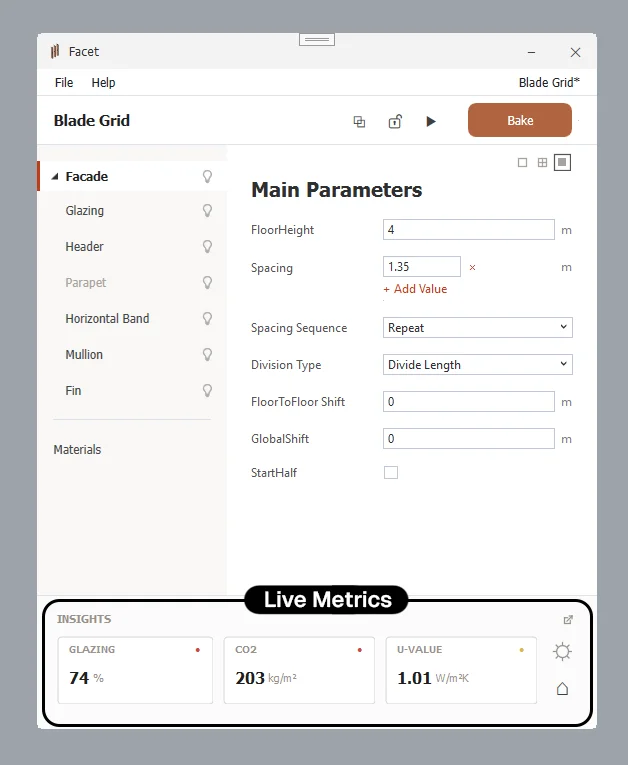
At the bottom of the controller, Facet shows live metrics for the current design:
- Glazing: the percentage of your selected surfaces that is glazed.
- CO₂: the average embodied carbon across the facade, in kgCO₂e/m².
- U-value: the facade’s average thermal transmittance, in W/m²K.
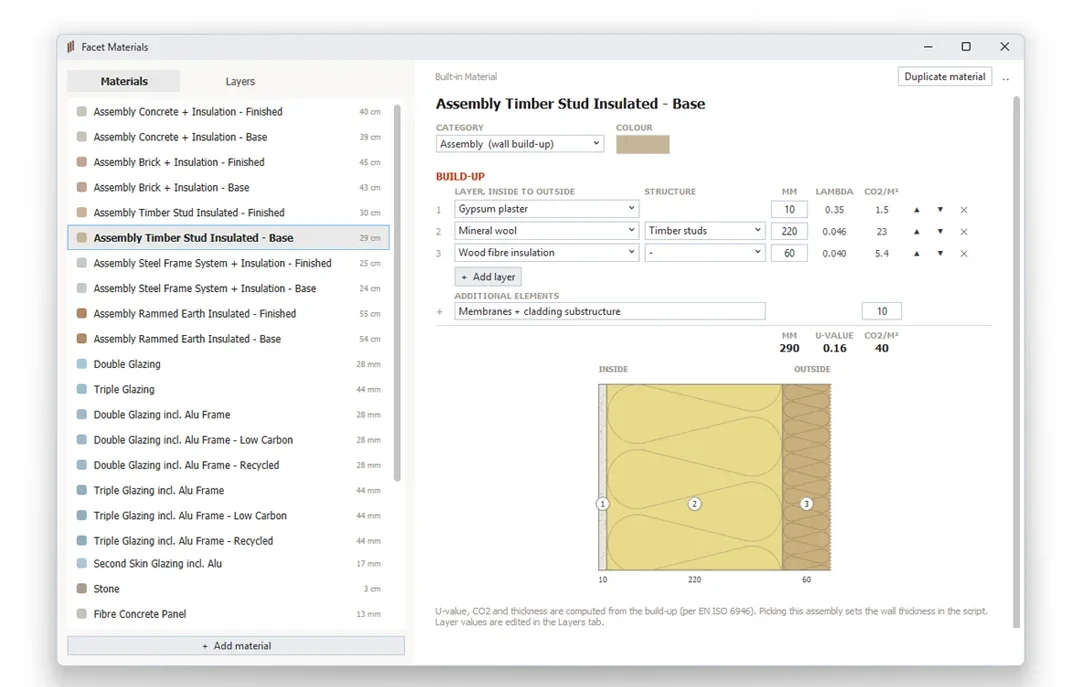
Every Facade Element gets assigned a Material. You can change the Material in the Element Parameters.
You can see, edit and add new assemblies and materials in the Material Editor.
6. Customize in Grasshopper
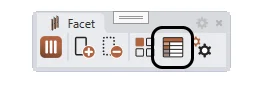
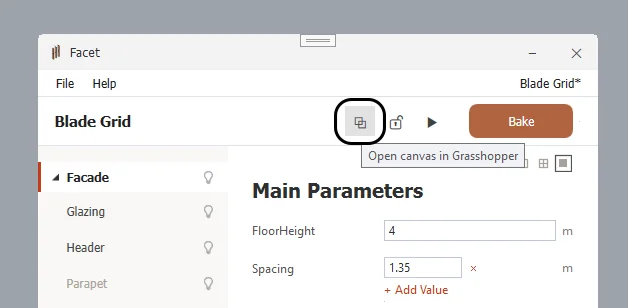
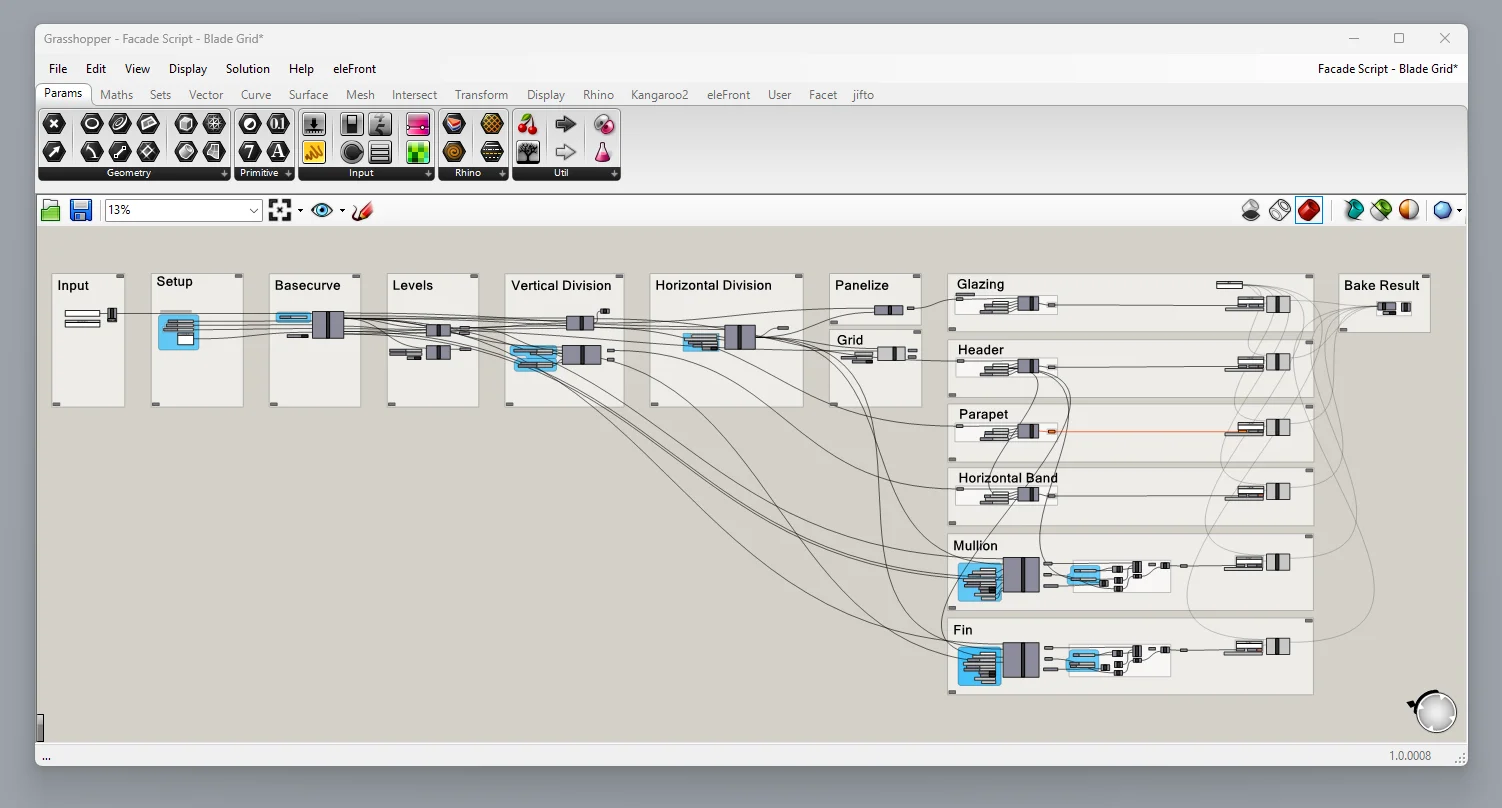
Click the Open in Grasshopper icon and the framework opens in Grasshopper. Every Facade element is grouped and titled so you know where to find them. Change any of the logic or add even more Element Parameters to the controller.
7. Bake
Until now, the facade is a preview. When you’re happy, click Bake in the top right of the Controller to add it to your Rhino model as ordinary geometry that you can edit, export and draw from. Bake as often as you like to compare options.