While you design, the facade is a preview. Baking turns it into ordinary Rhino geometry in your model: you can edit it, export it, render it and draw from it like anything else you’ve modelled. Baked geometry stays yours — it doesn’t need Facet to open.
Bake
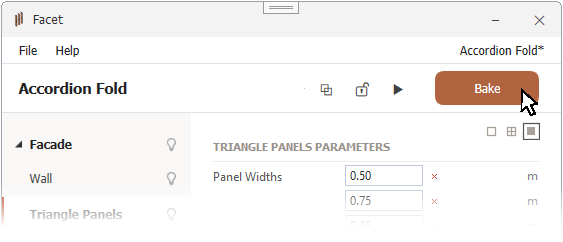
Click Bake in the top right of the controller.
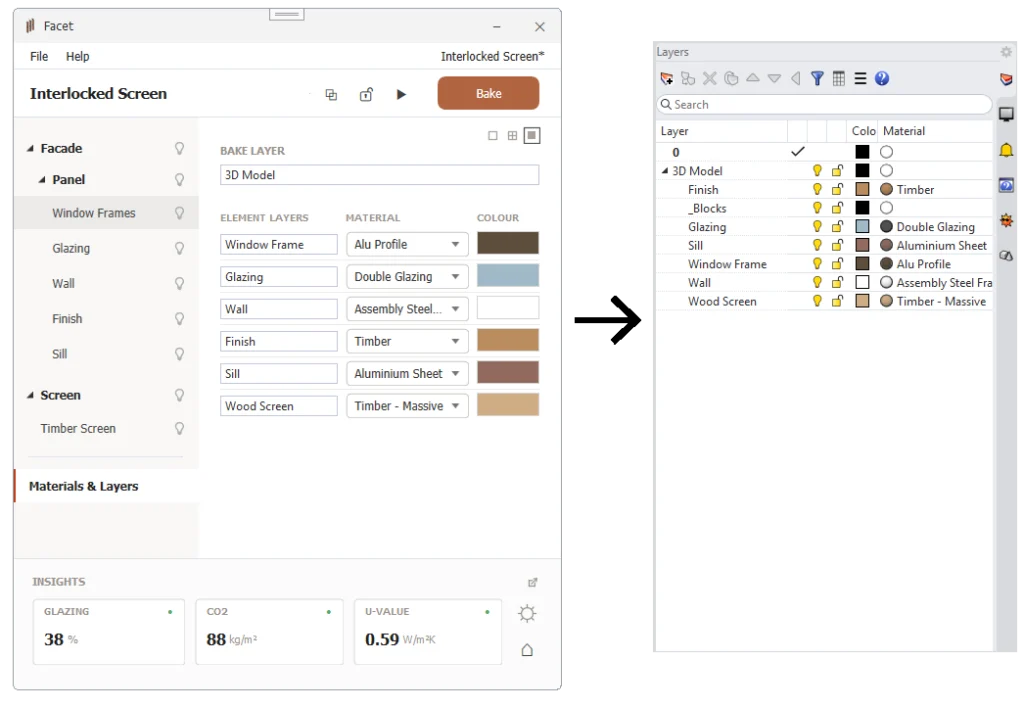
The facade is added to your model on a main layer with a sublayer for each element. Each sublayer gets the element’s colour and render material, so the model is ready for a quick render.
Switched-off elements (bulb off in the controller) are not baked.
Bake again
Bake as often as you like. Baking again updates the facade already baked on the same layers, so you can keep refining and baking without collecting copies.
To keep an earlier version instead, bake it to a different layer name first. See Bake design options.
Materials & Layers
The Materials & Layers tab at the bottom of the element list shows everything that decides where and how the facade bakes, in one place:
- Bake Layer — the name of the main bake layer.
- Element layers — one row per element: its sublayer name, material and colour. Change any of them here; the change also shows in the element’s own tab.
Each Element gets a Colour Swatch. The selected colour is applied to the facade preview as well as the baked geometry.
Element names on baked objects
Every baked object carries information about where it came from in its Attribute User Text: the element, the material, and its area, length or volume. You can read it in the Properties panel and use it for selections, schedules or exports.