The controller is where you design. It’s a Rhino panel you can float or dock like any other. Type Facet or click the first toolbar button to open it.
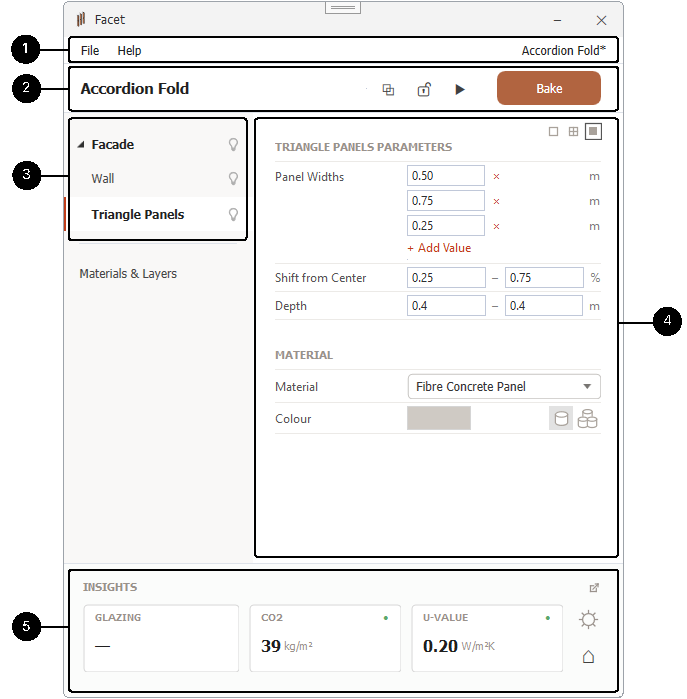
1. Menu bar
- File — open, save and switch documents. See Save and open your work. Preferences… opens Facet Settings.
- Help — Documentation… opens these docs; Restore Facet Toolbar brings back a missing toolbar.
- Document name (right) — the open framework, with
*when it has unsaved changes. Click it to switch between open frameworks, close one, or open another.
2. Title bar
The framework’s name, then four buttons:
| Button | What it does |
|---|---|
 | Opens the framework in Grasshopper. See Customise in Grasshopper. |
 | Lock solver — pauses automatic updates, so you can change several values (or edit surfaces) without waiting for the facade to rebuild each time. Click again to unlock. |
 | Recompute now — rebuilds the facade once, even while locked. |
 | Adds the facade to your Rhino model. See Bake your facade. |
3. Elements (left)
The list on the left shows the facade’s elements: panels, fins, frames, openings and so on, depending on the framework. Larger frameworks group them under headings (for example Facade, Screen); click a heading to fold it.
- Click an element to show its parameters.
- The bulb next to an element switches it on or off. Switched-off elements disappear from the preview and from the bake — useful for testing a variant without the fins, for example.
- Materials & Layers at the bottom is a summary of every element’s material, colour and bake layer. See Bake your facade.
4. Parameters (right)
The selected element’s parameters, in groups. The first group is the element’s own parameters; the Material group always comes last.
- Numbers — type a value and press Enter (or click away). Esc undoes the edit. Values stay inside the range the framework allows.
- Ranges — two values in one row,
min – max, for things that vary within limits. - Lists — a dropdown of options.
- Checkboxes — on/off options.
- Lists of numbers (for example a spacing sequence) — edit the values, add rows with + Add Value, then Apply.
- Profiles — a ✎ Draw… button opens the profile editor. See Drawing profiles.
- Material and colour — see Choosing materials and colours.
Find an element in the model: press and hold the first heading of a tab. The element’s geometry lights up in the viewport while you hold.
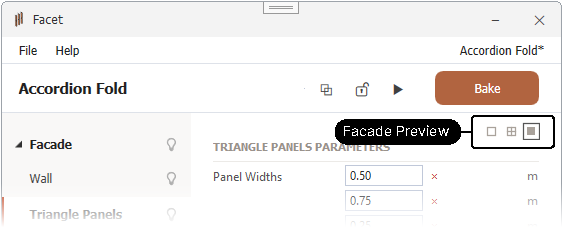
Above the parameters, three icons set how the facade preview is drawn: off, wireframe or shaded.
5. Insights (bottom)
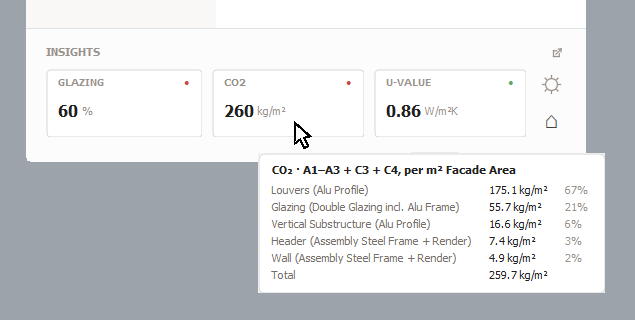
Three live numbers for the whole design: Glazing, CO₂ and U-Value, each with a coloured dot against your targets. Hover over a number for its breakdown.
Next to them:
- ☀ Solar analysis — opens the Facet Solar panel. See Solar analysis.
- ⌂ Add context — select neighbouring buildings to include as shading in the solar analysis.
- Data card — shows the facade’s numbers as a small card in the viewport, which stays in view captures.
More: Glazing, CO₂ and U-value
Trying another framework
Open a different framework from File → Open Gallery… (or the document name menu → Browse Gallery…). Your linked surfaces stay linked, so the new framework appears on the same surfaces. The previous framework stays open in the document menu; close it there if you don’t need it.