Fins, frames and some profiles let you draw their cross-section yourself instead of choosing a standard shape. You draw with Rhino’s normal tools in a dedicated view, and the profile is applied along the whole element.
1. Open the editor
In the controller, find the element’s Profile row (it may be called Frame or Fin Profile) and click ✎ Draw… — or ✎ Edit….
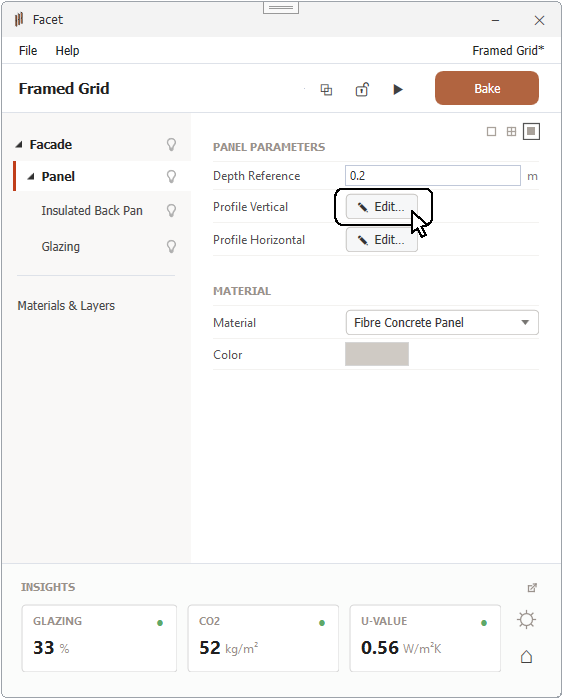
The Profile Editor opens as a separate floating view.
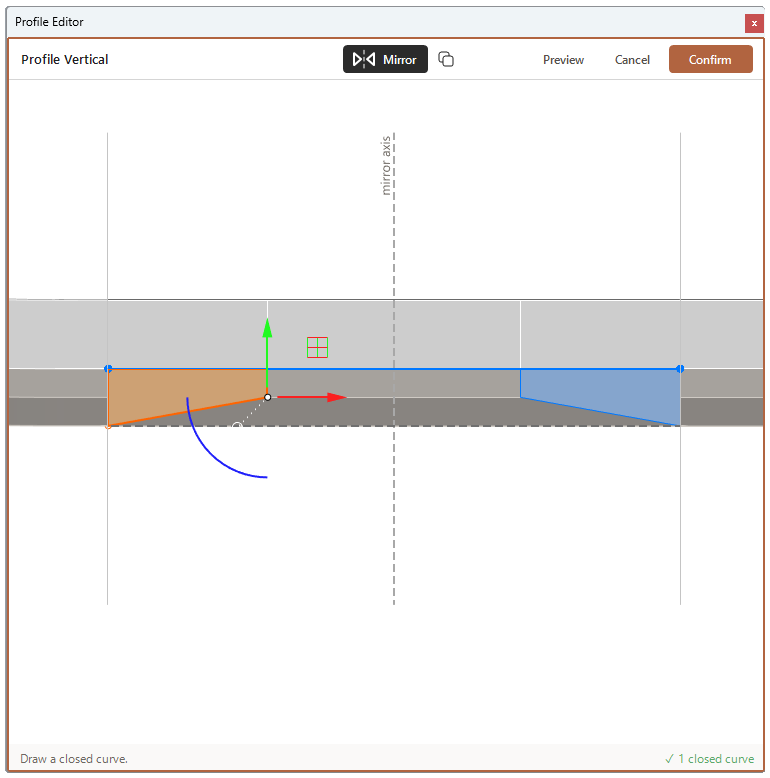
2. Draw
Draw one closed curve with any Rhino tool: Polyline, Rectangle, Circle, Curve, or edit the existing outline with control points.
- Frame sections: draw one closed section that straddles the dashed centreline. Facet mirrors it for the other side automatically.
- Linear profiles: the mirror toggle in the editor makes the shape symmetrical. Click the ‘Copy’ button next to ‘Mirror’ to turn the mirrored preview into an editable curve.
Click Preview to see the result on the facade without leaving the editor.
3. Confirm or cancel
- Confirm applies the profile to the facade and closes the editor.
- Cancel closes the editor and keeps the previous profile.
You can also use the ✓ Confirm and ✕ Cancel buttons that appear in the controller row while you edit. Only one profile can be edited at a time.
Good to know
- The drawn profile is saved with the framework document — save it to keep it. See Save and open your work.