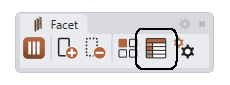
The Materials Library holds every material and assembly Facet knows: their layers, colours, U-values and CO₂ data. Open it with the Materials button on the toolbar, or type FacetMaterials.
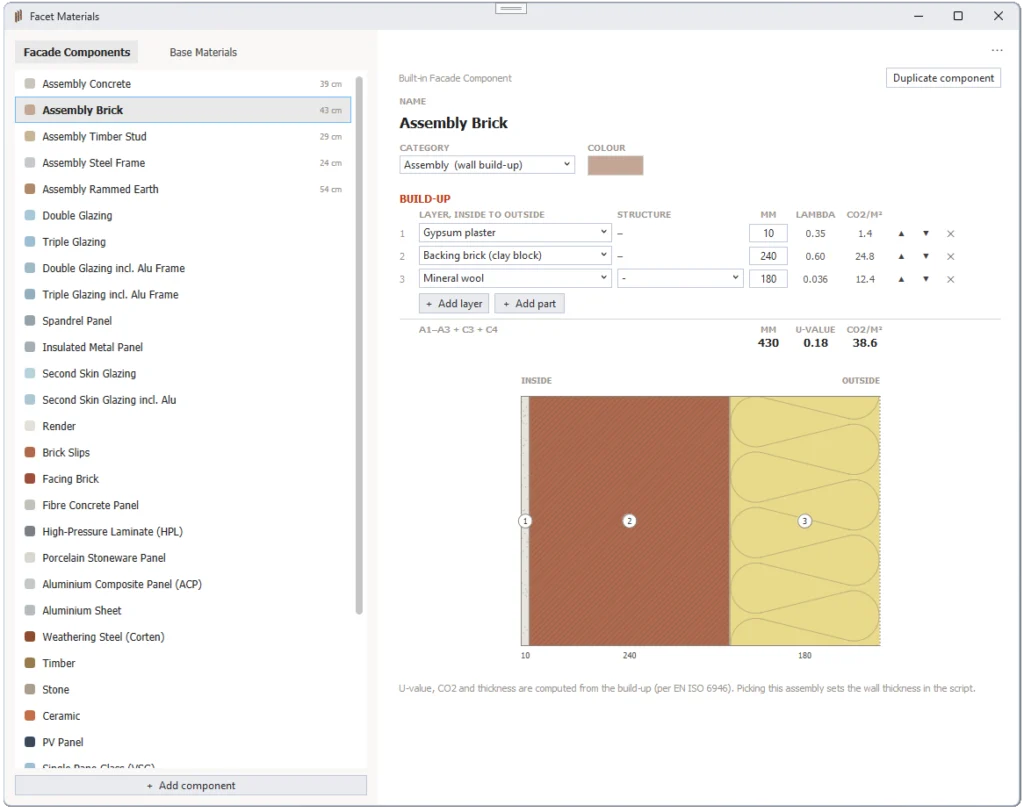
On the top left the Material Library has two tabs:
- Facade Components — what you pick in the controller: assemblies, glazing, profiles, claddings and massive materials.
- Base Materials — the raw materials they’re made of (concrete, mineral wool, aluminium, glass …), each with its environmental data.
Click an entry to see its details on the right. Edited entries are marked EDITED, your own ones CUSTOM.
Facade Components
Facade components show the following information on the right panel when selected:
- Category — assembly, glass & spandrel, material (by area), profile, or massive (by volume). The category decides how the component is counted.
- Colour and, for glass and materials, Transparency. This color will be automatically applied once the material is applied to an element.
- Build-up — the layers from inside to outside with their thickness and thermal conductivity, and a section drawing. For assemblies, U-value, CO₂ and thickness are calculated from these layers.
- Parts, per m² — extras such as brackets, fixings or frames.
- Totals — thickness, U-value and CO₂ per m².
- For claddings, a Standalone / As finish switch shows the cladding on its own or as it’s added in front of a wall.
Where the data comes from
Base materials use generic datasets from ÖKOBAUDAT 2024-II (EN 15804+A2), Germany’s public database for building materials. Each base material shows its source; click it to open the dataset on oekobaudat.de. CO₂ is kept per life-cycle stage (A1–A3 production, C3/C4 end of life, D beyond the system boundary). Which stages the insights add up is set in Facet Settings → Performance Targets → CO2 scope.
The values are indicative, for early design. Check them against product EPDs for anything contractual.
Adding and editing
- Add your own: click + Add component (or + Add base material).
- Start from an existing one: right-click → Duplicate component, then change the copy. Built-in names can’t be changed, so duplicate to make a renamed version.
- Edit a built-in: change its values directly. Right-click → Reset to default undoes your edits.
- Delete (right-click) works on your own entries only.
- Editing a base material updates every component that uses it.
Changes are saved when you close the window, and open facades pick them up straight away: the material lists, colours and insights all update.
Sharing a library with your office
The ⋯ menu (top right) has:
- Export material library — saves your additions and edits as a file (facet-materials.json).
- Import material library — adds a colleague’s custom entries to yours.
- Reset to defaults — removes all your custom entries and edits on this computer.
The export also includes your performance targets and CO₂ scope, so an office can share one set of goals.