Facet builds the facade on the surfaces you link to it. Linking is how you tell Facet which parts of your model are facade.
Linking your first surfaces
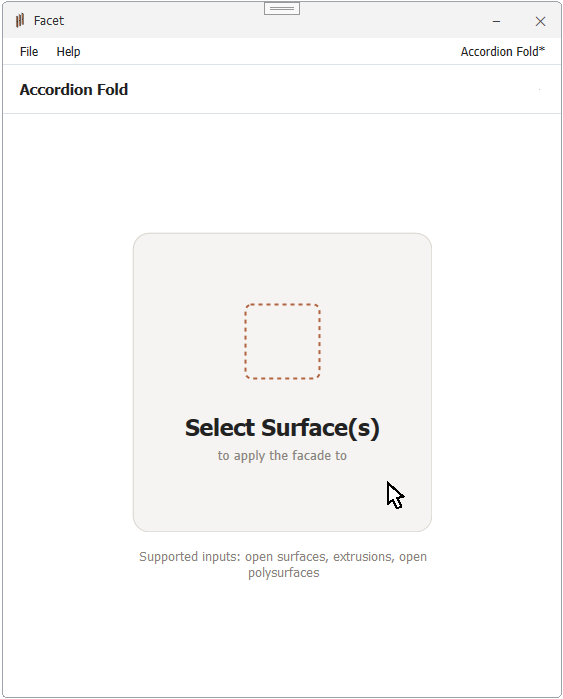
When a framework is open but nothing is linked yet, the controller shows Select Surface(s).
- Click Select Surface(s).
- Pick one or more surfaces in the viewport. You can also select them before clicking.
- Press Enter.
The facade appears within a few seconds; large surfaces take longer.
Adding and removing surfaces later
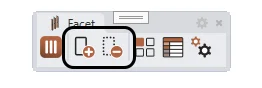
The toolbar has two buttons for this.
- Add Surface — select one or more surfaces in Rhino, then click Add Surface. They join the facade.
- Remove Surface — select linked surfaces, then click Remove Surface. Their facade disappears; the surfaces themselves stay in your model.
The command line confirms how many surfaces were linked or unlinked.
What linking does
- The surface switches to a wireframe display, so it doesn’t hide the facade in front of it.
- It gets the name GH_Facet Facade in its object properties. That name is the link: any Facet framework you open picks up all surfaces with it.
- It gets an empty set of per-surface settings (floor heights, spacing and so on) you can fill in later.
Nothing else changes: the surface stays on its layer, and you can edit it like any other object.
Unlinking restores the surface’s display and clears the name.
Editing linked surfaces
A linked surface stays live. Move it, stretch it, change its outline, or delete it: the facade updates a moment after you stop editing. Copying a linked surface also copies the link, so the copy gets a facade too.
Hidden surfaces are ignored. Hide a linked surface to take it out of the facade temporarily; show it again to bring it back.
Several surfaces
You can link as many surfaces as you like. Each one gets its own facade, laid out from its own edges, and each can have its own per-surface settings. For big models, start with one or two surfaces while you design — see Tips for large facades.
Which surfaces work
Open surfaces, open polysurfaces and extrusions, standing vertically. Closed solids are not accepted. See Supported surfaces for the details.